Annotating a video without the right annotation tools is the closest thing we can think of to nailing Jell-O to a wall. Videos are morphing pieces of media and every change or piece of feedback creates ripple effects for the next version. On top of that, video proofing is primed for classic bad questions like “Can you make this shot shorter?” and “What’s the difference between this version and the last one?”
To save the sanity and morale of your creatives, you need the right tool for annotating videos. And to get the best final deliverable, that tool should facilitate collaboration for reviews and approvals in your creative operations.
Below, we’ll get into the steps for annotating a video, and then show you some video proofing tools that will level up your creative operations.
Let’s dig in!
What we'll cover
Table of contents
Steps for annotating a video
There are multiple steps to annotating a video, only some of which are the actual meat and potatoes annotation methods. The other steps include some research on your part for your particular creative needs before you get started. You don’t want to use the wrong tool from the beginning and find out later you’re creating more work for yourself. So, with that in mind, the steps are:
1. Identify your video annotation needs
You need to examine your process and identify your specific annotation needs right from the start. Are you looking to enhance collaboration among your team? Do you need features like frame-accurate comments, version control, or threaded discussions?
If you’re a marketing team, you might need precise feedback on the timing and visuals of a thirty second promo, while an educational content creator might need detailed notes on each instructional segment. Teams that require many reviews across multiple layers of stakeholders would need robust version control for their proofing process.
Knowing your needs will help you choose the best tool.
2. Select the right annotation tool
Now that you know your annotation needs, you can choose the tool that works for your team. You want an annotation tool that your creatives want to use and actually like, so user-friendliness should be top of mind, as well as compatibility with your existing systems / tech stack. The right tool should have app extensions or native integrations with your systems.
Keep in mind your industry standards as well. If you need certain aspect ratios, for instance, you probably need a tool that shows you cut-off points.
3. Upload your video
Once you’ve chosen your tool, the next step is to upload your video. This process is pretty straightforward. In Ziflow, you only need to log in, click the “Create Proof” button in the upper right corner, drag a video to where it says “Drop files here”, then click the “Create” button at the lower left corner.
You can upload various video formats, ensuring compatibility with many types of projects. This step sets the stage for collaborative annotation, allowing all team members to access the video simultaneously.
4. Add range-based comments with frame accuracy
A second in the world of video might as well be a lifetime, which is why adding range-based comments with frame accuracy is a must for pinpointing feedback to exact moments in the video. It’s not enough to say, “remove the last part of this shot.” You need to be able to select the fifteen frames to delete so there’s no ambiguity.
Frame-accurate comments ensure that your feedback is clear and actionable, avoiding any confusion about which part of the video needs adjustments. Imagine you are refining a commercial: specifying that the brand logo needs to appear one second earlier can make a significant difference in the final cut.
5. Compare versions
Version comparison is an essential feature for creative teams that allows you to track changes and ensure that feedback is implemented correctly. For instance, if you’re working on an ad for a pharmaceutical product, you can compare the initial and final versions to ensure that all suggested edits have been made, and compliance boxes have been ticked.
This feature is particularly useful in Ziflow, where you can overlay two versions of a video or highlight the changes, making it easy to see what’s been modified. If you’re producing a series of social media ads, comparing the revised versions helps in maintaining consistency across all videos.
6. Share with reviewers and collaborators
Sharing your annotated video with the right stakeholders is a key part of effective creative proofing. In Ziflow, you can invite team members and external collaborators to review and comment on the video. This feature supports different access levels, ensuring that only authorized individuals can make changes or view specific content.
For example, a creative director might need to give final approval, while a client might only need to view the final cut. If you’re working with a client on a promotional video, inviting them to review the video directly in Ziflow can streamline the feedback process and ensure that all comments are captured in one place.
7. Review and resolve comment threads
To ensure feedback doesn’t stall, it’s important to review and resolve comment threads. This keeps the feedback process organized and ensures that nothing slips through the cracks. In Ziflow, you can mark comments as resolved once the necessary changes have been made, maintaining a clear record of all feedback and actions taken. If you’re collaborating on a complex video project with multiple stakeholders, resolving comment threads ensures that every piece of feedback is addressed systematically, leading to a smoother final approval process.
5 tools for video annotation and collaboration
Below is a rundown of five tools used for video annotation that we think you should be aware of.
1. Ziflow
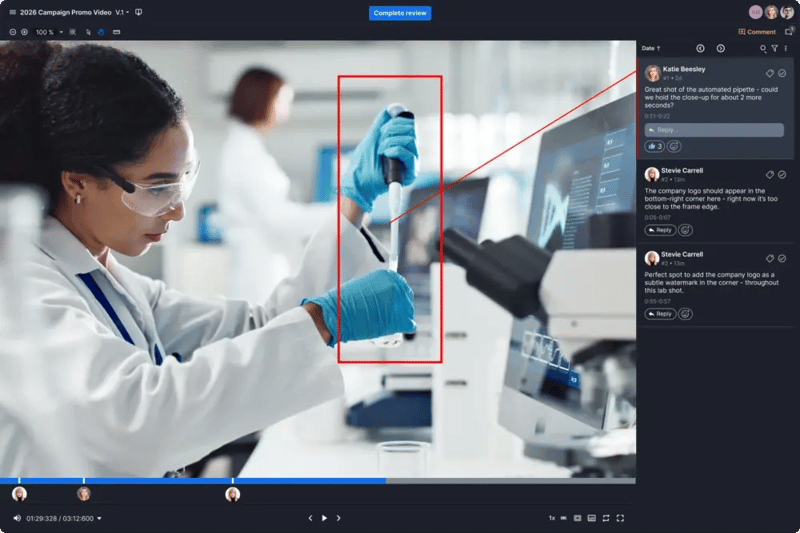
Ziflow is the leading video annotation and collaboration tool for creative teams. It simplifies the video review and approval process so everyone can effectively collaborate and accomplish more. With Ziflow, you spend less time on video feedback and more time refining video deliverables.
If your video annotation workflows are a mess, Ziflow helps you establish a clear process. And Ziflow’s automation and annotation tools clearly specify what’s expected of each party and when an item can officially be marked complete.
Ziflow also easily scales with your creative team, and is built to handle enterprise organizations.
Key features:
- Range-based comments with frame accuracy
- Version comparison
- Real-time collaboration
- Threaded comments
- Customizable workflows
Pricing: Ziflow offers various pricing plans based on the number of users and features required. It provides a free trial for new users.
2. Frame.io
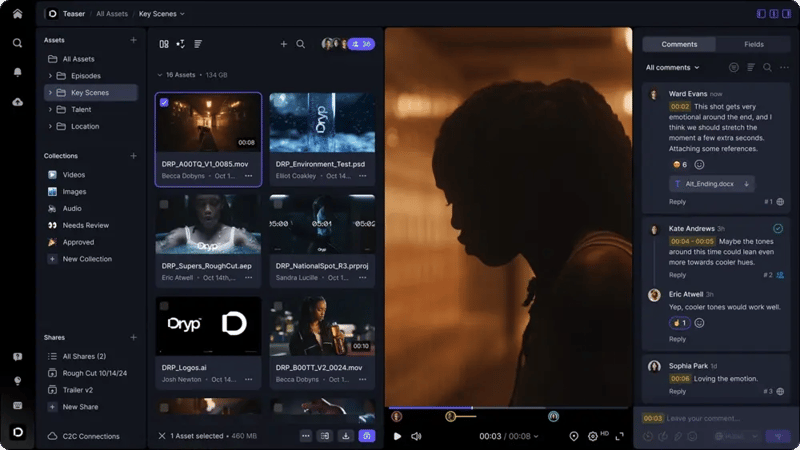
For informational commentary. © www.frame.io. Trademarks belong to their respective owners.
Frame.io is a platform designed to centralize media sharing, feedback tracking, and workflow streamlining. It’s primarily for video production teams, offering features such as real-time annotations and secure file sharing. Frame.io is integrated with popular video editing software like Adobe Premiere Pro, Final Cut Pro, and Avid Media Composer, allowing editors to view notes directly in their timelines and manage assets.
While Frame.io is a great tool, you should know that it’s primarily a video proofing platform specifically for video review and approval workflows. Compare that to Ziflow, which is designed for full-scale creative and marketing teams.
Key features:
- Real-time video review and approval
- Frame-accurate commenting
- Version management
- Integration with editing software like Adobe Premiere Pro
Pricing: Frame.io offers tiered pricing plans starting from $15 per user per month, with a free trial available.
3. Wipster
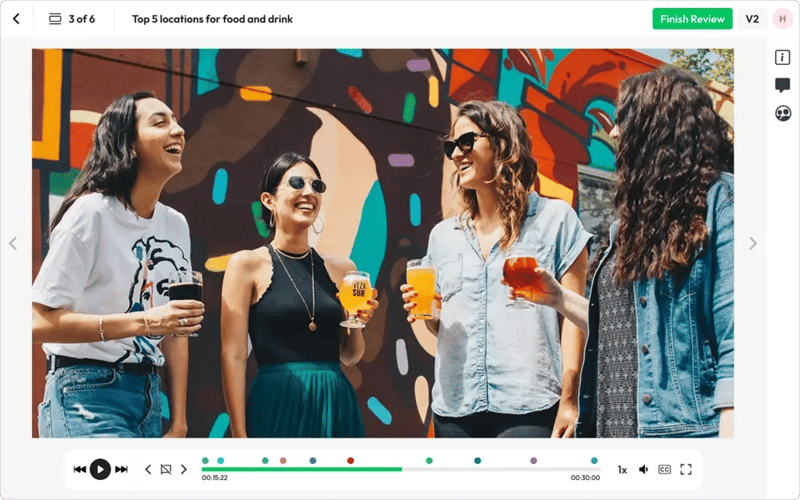
For informational commentary. © www.wipster.io. Trademarks belong to their respective owners.
Wipster is a user-friendly platform designed for the collaboration, review, and approval of video and creative content. It supports various media types, including videos, PDFs, audio, and images, making it versatile for different creative needs. One of its key features is that it offers free access for reviewers, allowing unlimited stakeholders to participate. The platform is mobile-friendly, enabling project progress on the go.
Key features:
- Time-stamped comments
- Version control
- Integration with popular editing software
- Secure sharing
Pricing: Wipster’s pricing starts at $19 per month, with different plans based on the number of users and features.
4. Veed
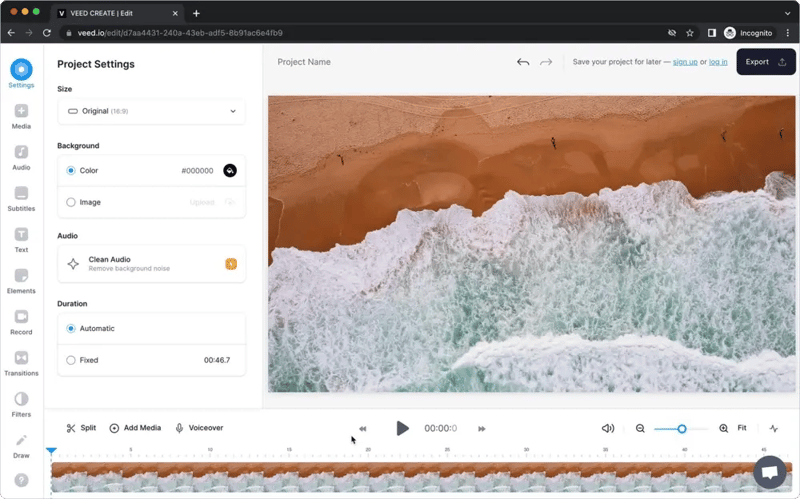
For informational commentary. © www.veed.io. Trademarks belong to their respective owners.
VEED is an accessible online video editing platform designed to simplify the creation of high-quality videos for individuals and organizations. Key features include watermark removal, high-resolution exports, subtitles, and AI tools such as clean audio and text-to-speech. VEED also provides features for businesses, including AI avatars, video analytics, and custom templates. VEED aims to empower everyone from freelancers to corporate teams to produce captivating videos efficiently.
Key features:
- Easy-to-use interface
- Real-time collaboration
- Simple editing tools
Pricing: Veed offers a free plan with basic features, and premium plans start at $12 per month.
5. Dropbox
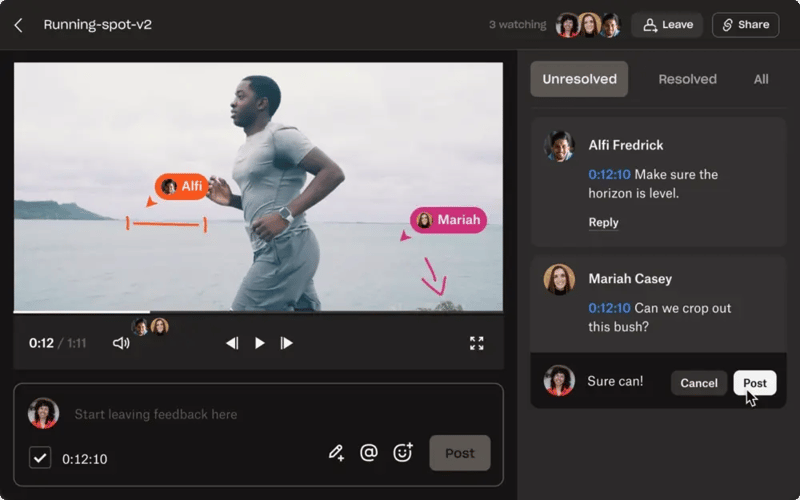
For informational commentary. © www.dropbox.com. Trademarks belong to their respective owners.
Dropbox Replay is a collaborative tool designed to streamline the review and approval process for creative projects, particularly in video production. It allows users to share media, gather feedback, and resolve comments in a centralized platform. Dropbox Replay supports live virtual reviews for audio, video, and image projects, with features like real-time comments and markup tools.
Key features:
Pricing: Dropbox offers a free plan with basic features, and paid plans start at $9.99 per month.
How to annotate videos with Ziflow
Earlier, we covered the big steps: upload, comment, compare, share, and resolve. Now let’s zoom in on the notes themselves, since that’s the part your editor actually cares about. Some feedback needs surgical precision on a single frame and some spans a whole scene, so the trick is matching the annotation to the problem. Here’s how to do it in Ziflow.
Pin a comment to the exact frame
A 30-second spot shot at 30 fps holds about 900 frames. When a lower third flickers past or a logo bug shows up a beat late, your editor shouldn’t have to guess which of those 900 you mean.
Pause the video and step through it with your arrow keys, one frame at a time, until you land on the culprit (Shift + arrow jumps 15 frames when you need to cover ground). Flip the timer to SMPTE timecode or a straight frame count so you know exactly where you’re parked, then drop your comment. It lands on that frame with a timestamp attached, and you can officially retire “somewhere around the three-second mark.”
Use a range when the problem plays out over time
Other problems take their sweet time. Maybe the pacing drags between 0:15 and 0:23, or the music bed buries the voiceover for the whole middle section.
Drag the comment markers to set a start and end point on the timeline, holding Shift to fine-tune each edge down to the frame. Ziflow saves the range timestamp inside the comment, and clicking either edge of the range jumps the playhead right to it. Press play and only your selected range plays. Turn on loop, and it repeats as many times as it takes to word your note just right.
Mark it up when words won’t cut it
Some notes are easier to show than to type (we’d argue most of them). Ziflow’s markup tools let you draw right on the video with a square, circle, arrow, line, or freehand pen, in whatever color stands out against your footage.
Circle the shadow creeping across the product shot. When the note is about one specific object, like a QR code that’s too small to scan, box it in so there’s zero debate about what you’re pointing at. Every markup pairs with a comment, so the drawing and the explanation travel together.
Check safe zones before anyone signs off
Remember the cut-off points from step two? This is where they earn their keep. Your video will play on phones, laptops, and whatever screen your CEO happens to be holding, and each aspect ratio crops the frame a little differently.
Turn on safe zones in the viewer to lay safe areas over your footage and see where likely cut-off points fall at industry-standard aspect ratios. If your end-card URL or a promo code is flirting with the edge of the frame, annotate it on the spot, while the fix is still cheap.
Let the workflow do the chasing
Annotations only help if the right people see them in the right order. Set up review stages so your video moves from the creative director to brand to legal, and add deadlines so anyone who hasn’t weighed in gets an automatic reminder when time’s up. Need a specific teammate’s eyes on a note? @mention them right in the comment.
Every comment carries the reviewer’s name and a timestamp, which comes in handy the next time someone swears they never asked for that transition. On Enterprise plans, checklists walk reviewers through your non-negotiables (logo lockup, legal super, and anything else that earns you a call from compliance) before they submit a decision, and Ziflow logs every pass and fail in the proof’s Activity tab. Running a dozen cutdowns through the same review? Apply a workflow template and each one follows the same path.
Get the notes back into the edit
Editors live in their timelines, so bring the feedback to them. Ziflow’s plugins for Premiere Pro and After Effects let editors send new versions into review, then reply to and resolve comments without leaving the app. The Final Cut Pro integration syncs frame-accurate feedback too. Meanwhile, project managers can follow along in Asana, where each proof’s workflow status and comments stay up to date.
When the next version comes back, open Compare mode to play both versions side by side or as an overlay, synced up, and switch on Auto Compare to highlight what changed. If an old note still applies, copy it straight onto the new version. And once stakeholders approve the final cut, Ziflow can drop it into a connected Dropbox folder, so nobody downloads last Tuesday’s export by mistake.
Facilitate video feedback easily with Ziflow
To avoid the typical pain and tribulations of the video feedback process, you need the best video annotation tools you can get for your team. Ziflow not only provides the necessary tools for precise video annotation but also offers a robust platform for collaboration, review, and approval. From frame-accurate comments to version comparison and seamless sharing with stakeholders, Ziflow simplifies the entire process, ensuring that creative teams can focus on delivering high-quality video content.



With a track record that spans media giants like WarnerMedia, Viacom, and Google, Aaron's expertise shines through in multi-million dollar projects across various mediums, from traditional television to the dynamic realm of YouTube.